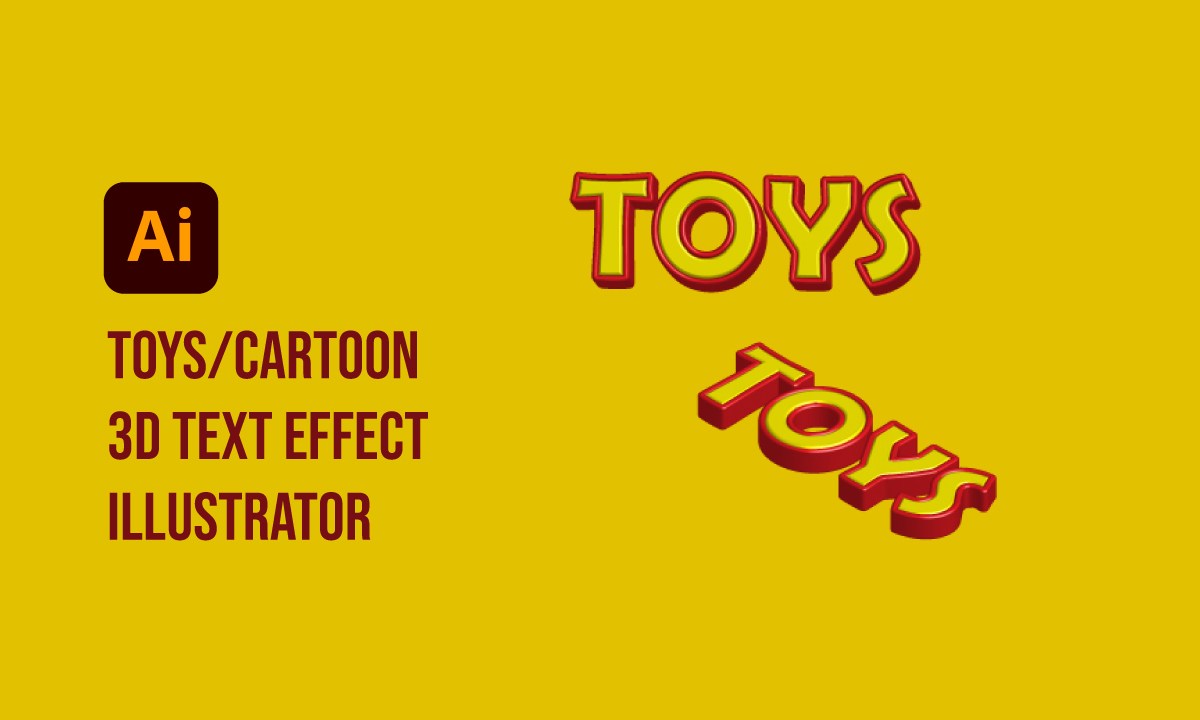
Warp Text into Custom Shape in Illustrator

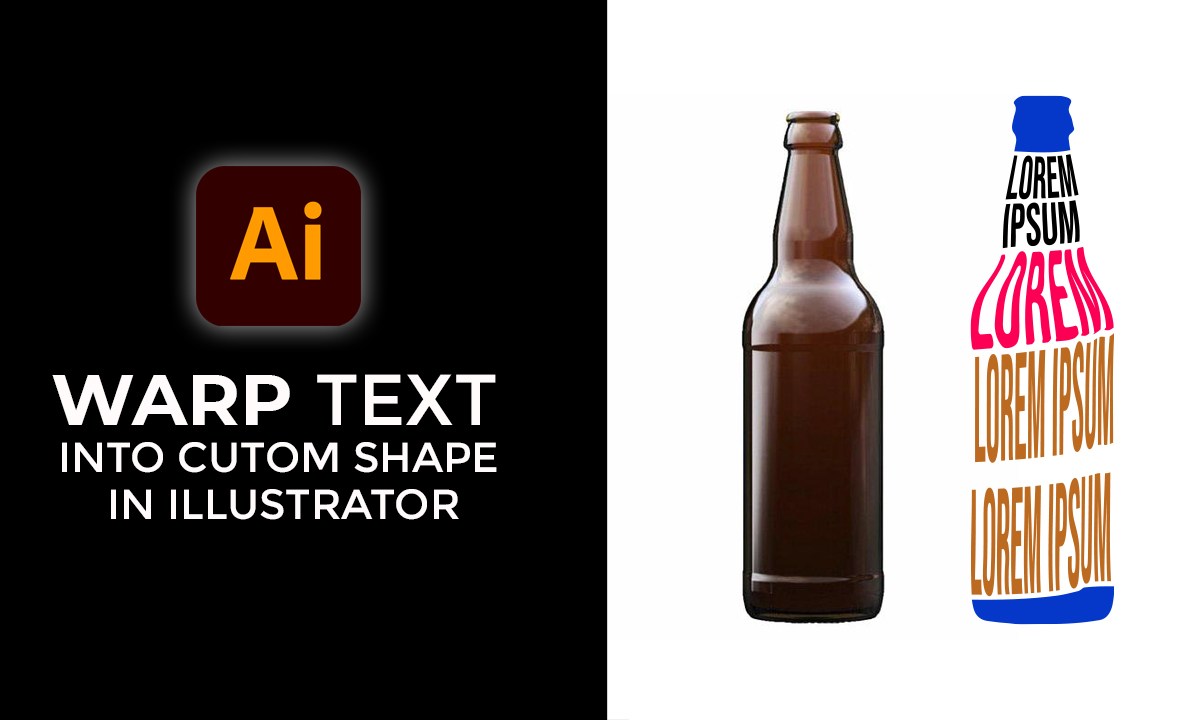
Warp text into custom shape in illustrator

Learn Wrap Text in illustrator

In above YouTube video tutorial I explained you how to create warp text into custom shape in adobe Illustrator

After watching this, you will be able to know:

How to create warp text.

How to convert image into shape.

How to trace an image. image to shape.

Related Video:

3d Deep Text illustrator

Retro Text Effect in Illustrator

Smoke Text Effect Illustrator

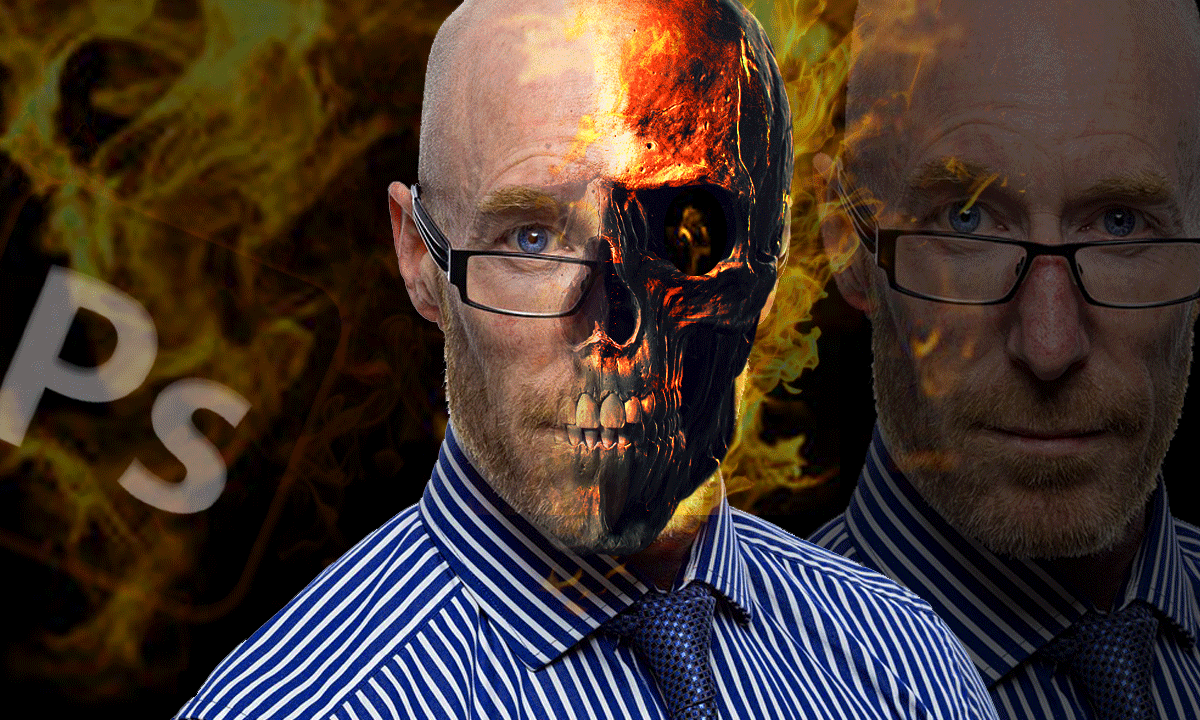
Skull with Fire Effect on Face using Photoshop

Skull with Fire Effect on Face using Photoshop

In this tutorial I will show you an amazing technique using adobe photoshop. I will show you how to merge or embed skull and fire on human face using adobe photoshop. it’s not difficult its very easy just follow some setups.

Related video :

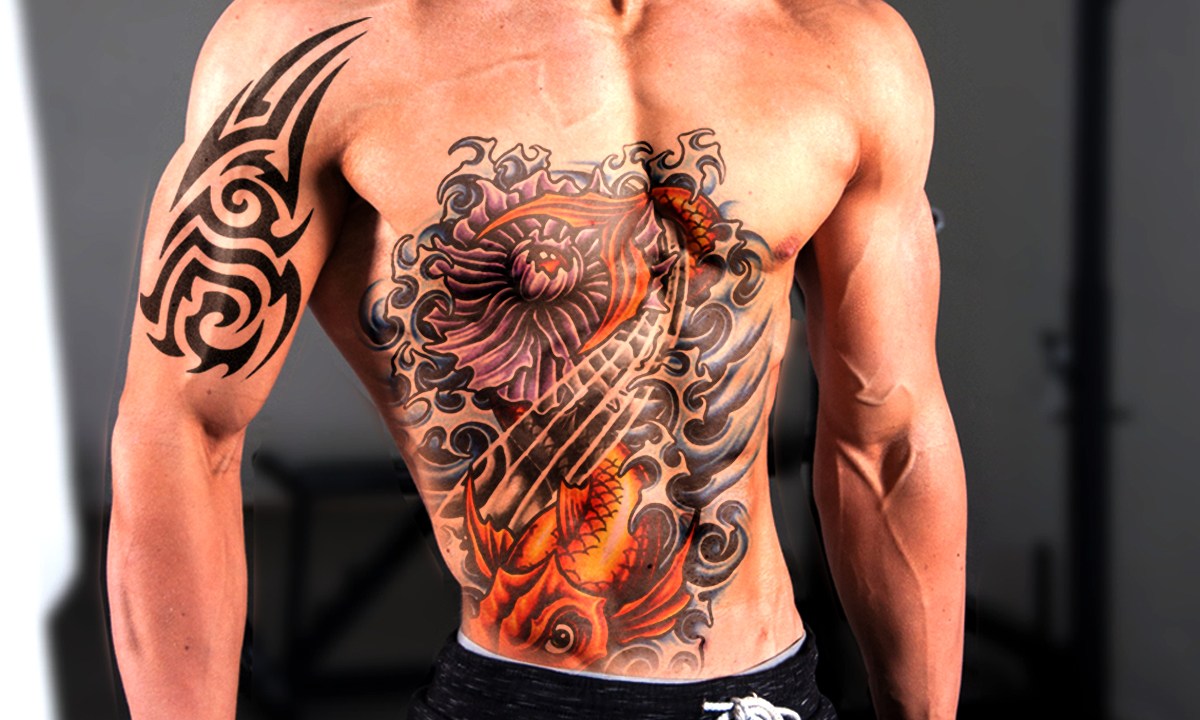
Tattoos Effect Photoshop | Tattoo Effect Urdu Hindi | Tattoo action pack

https://youtu.be/HnqWRIAeNqs

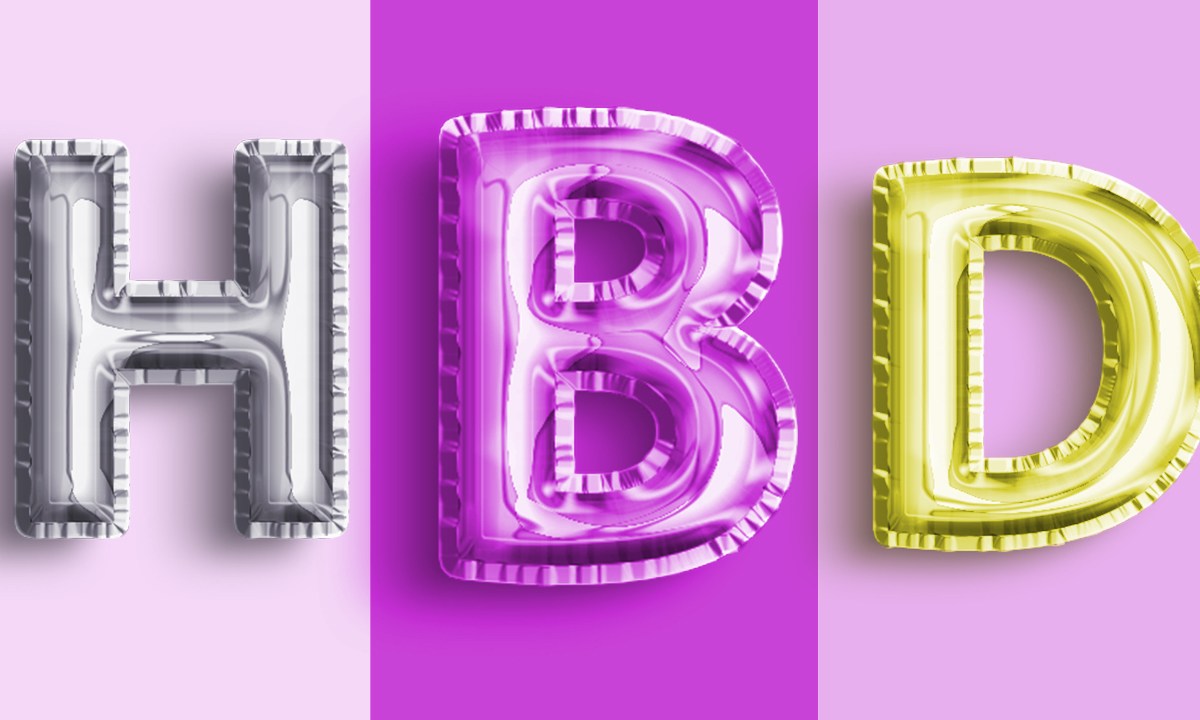
Balloon Text Effect Photoshop Urdu Hindi | Foil Balloon Text Effect

https://youtu.be/083gayZr2aY

3d Deep Text illustrator | Short Tips and Tricks | illustrator in Urdu/hindi

https://youtu.be/LGatMWiaJ0Q

Warp text into custom shape in illustrator | Warp Text

https://youtu.be/f9Ehp0UjXmk

How to Change Dress Color Without Changing Skin Tone

https://youtu.be/ayJrwL-jiII

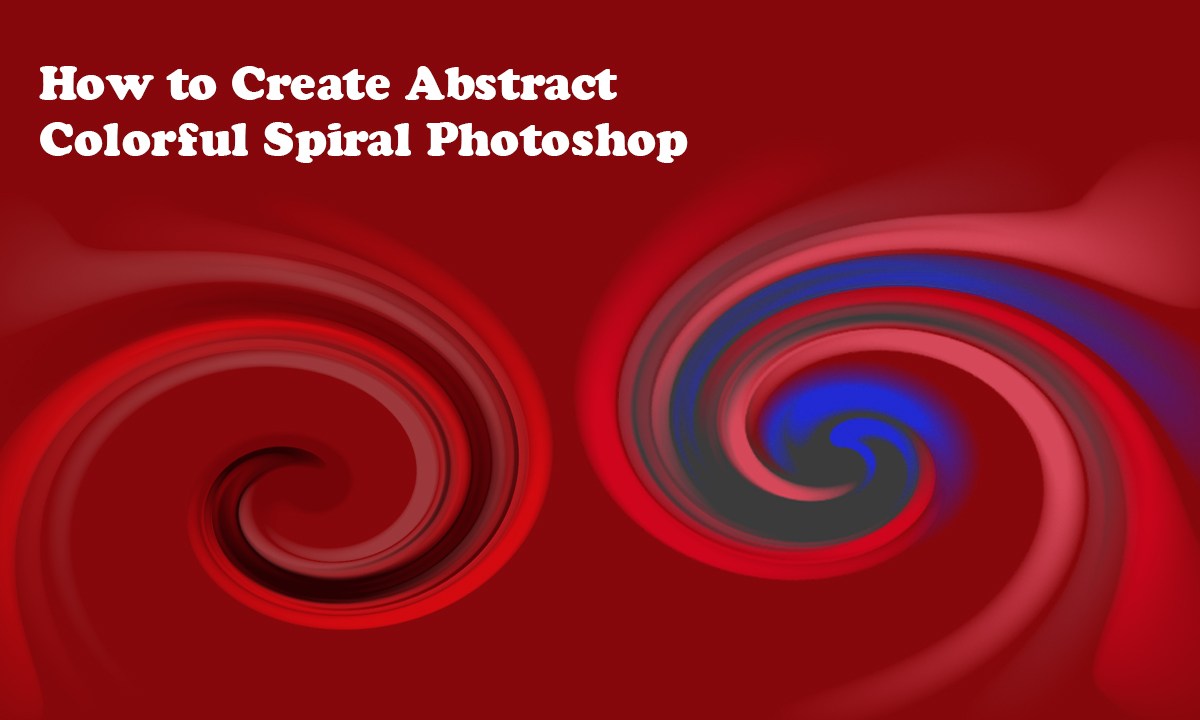
How to Create Abstract Colorful Spiral in Photoshop | Abstract Radial Twirl Spiral in Photoshop

Abstract Radial Twirl Spiral in Photoshop

Hey everyone, are you interested in learn colorful spiral? In this video tutorial I will guide and explain step by step process how to create colorful abstract spiral in photoshop.

Related video tutorial:

How to turn ON Car Headlights Photoshop

Hey everyone, are you interested in learn Graphic Design. The Pandora Mentor guide and teach you about graphic design including short tips and tricks and training from beginner to advance level.

In this video I will explain how to turn effect using photoshop. It very easy to add effect by some clicks.

Open the car image.

unlock and select the layer of car.

turn ON Car Headlights Photoshop

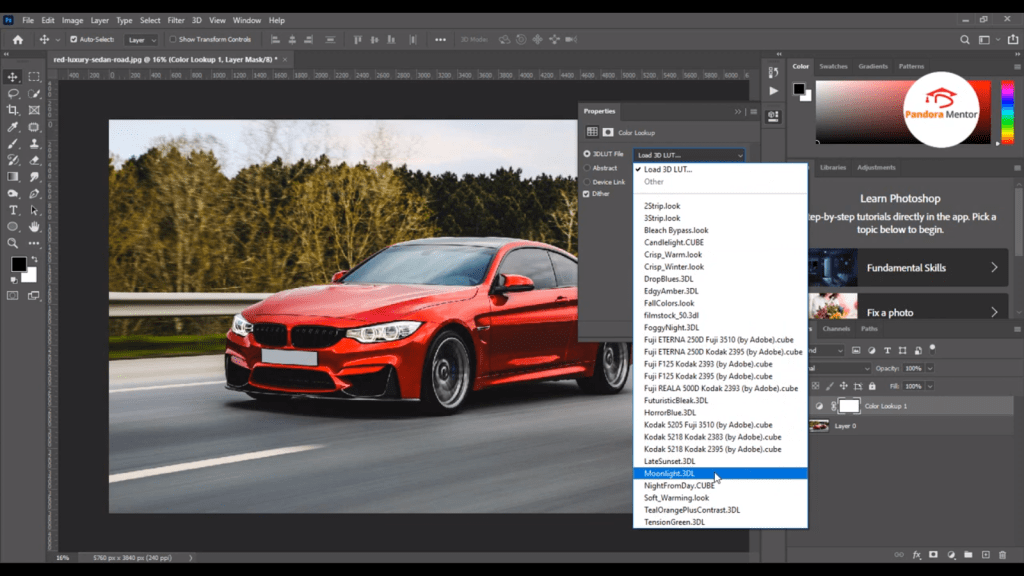
Click on layer adjustment >>click on color lookup >> select moonlight.3DL

turn ON Car Headlights Photoshop

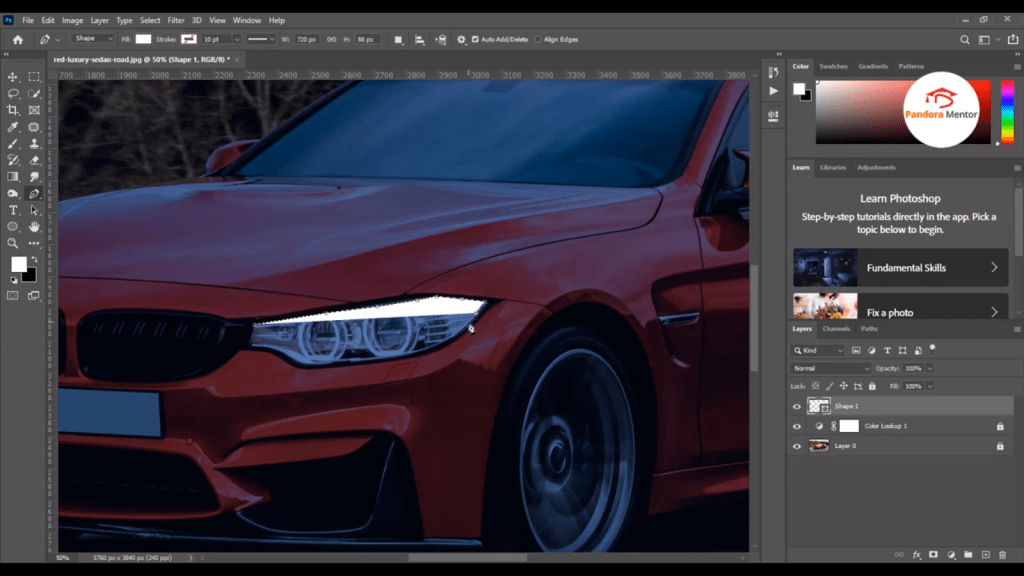
after that grab new layer >> grab pen tool >> select shape from top >> choose white color and then start selection or create shape of light.

turn ON Car Headlights Photoshop

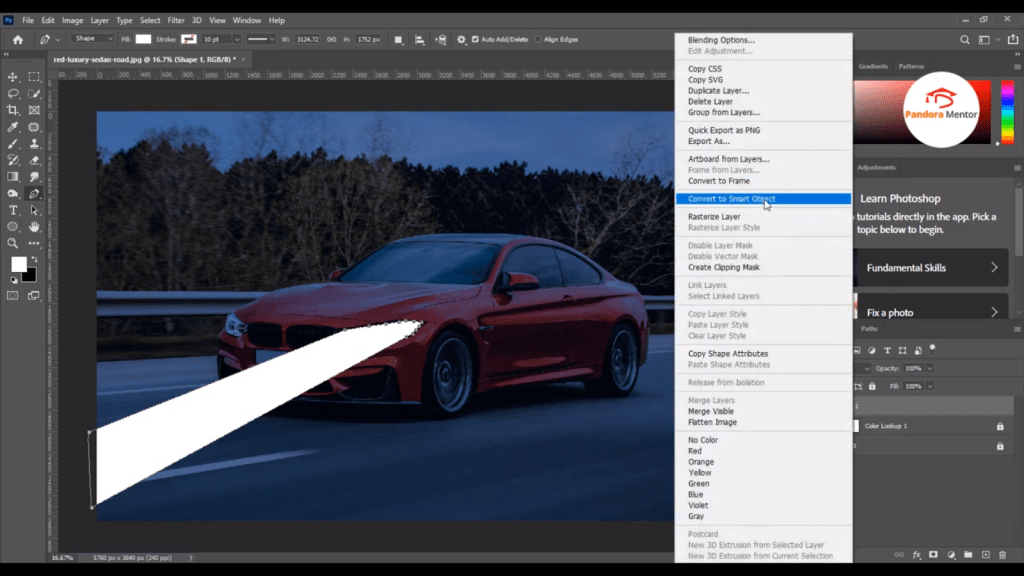
after that convert this shape to smart object by click on layer and click on smart object.

turn ON Car Headlights Photoshop

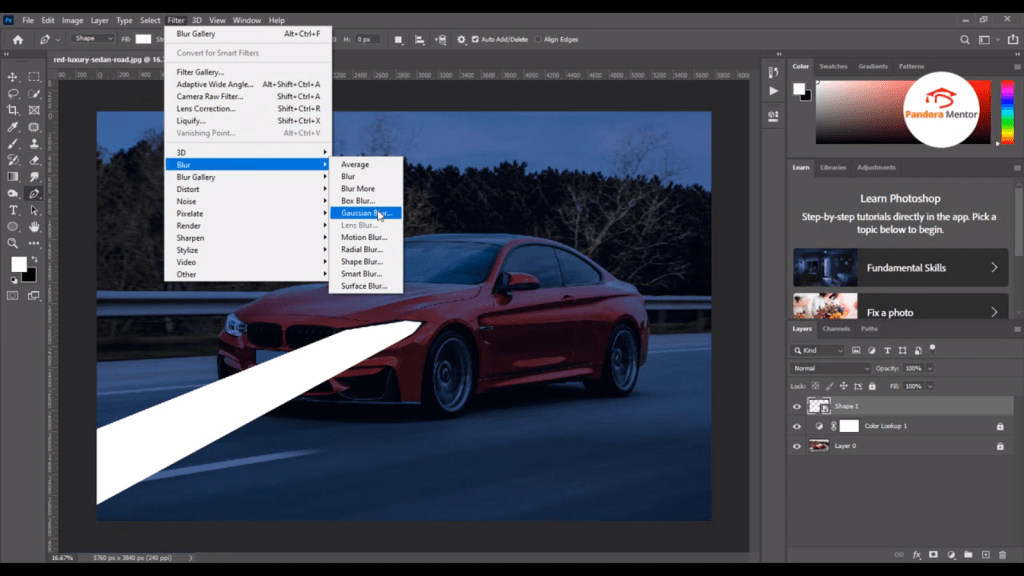
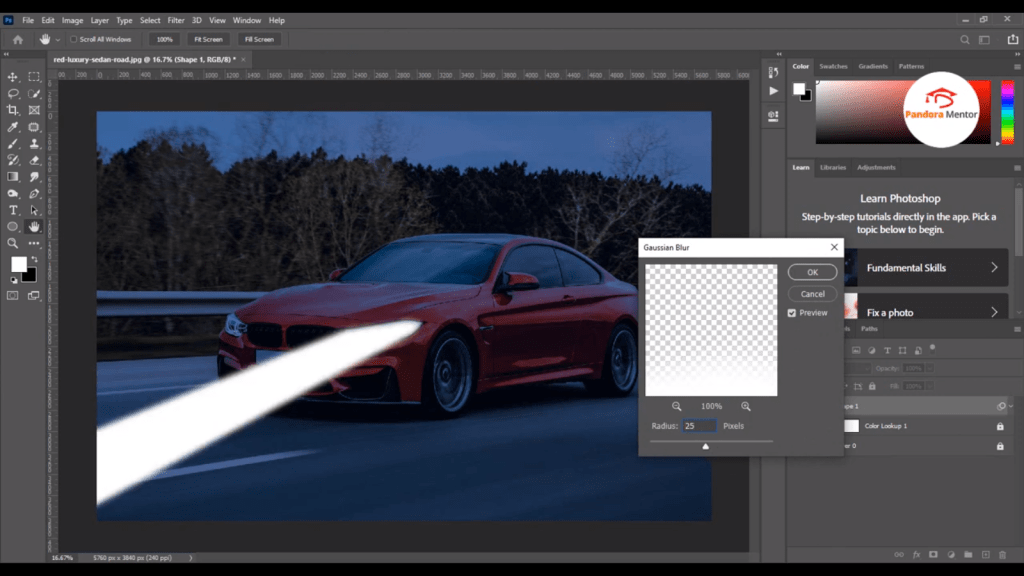
after that select layer and then go to filter >> blur >> gaussiaon blur.

turn ON Car Headlights Photoshop

add the value of blure

turn ON Car Headlights Photoshop

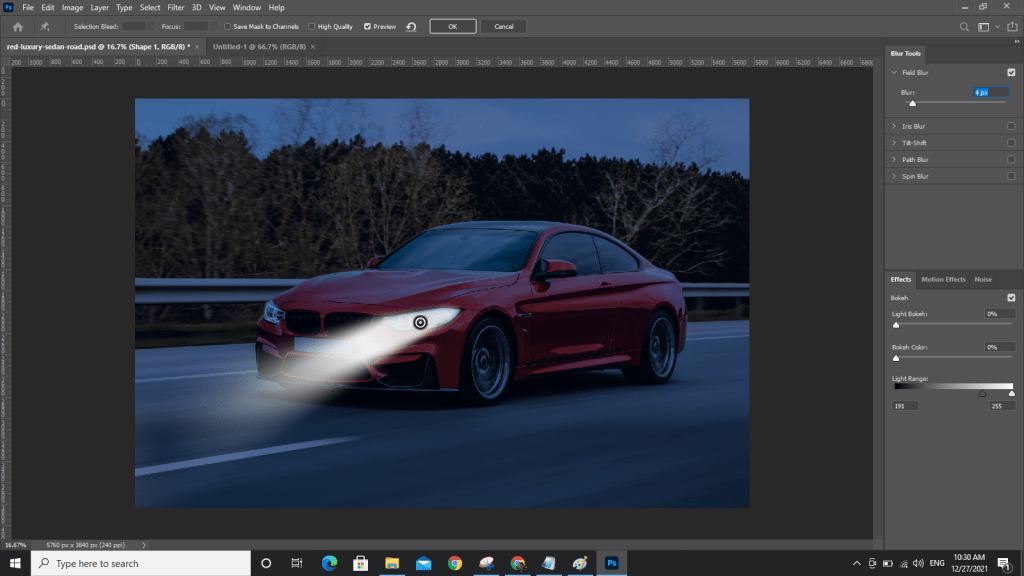
after that again go to filter>> click on blur >> click on filed blur>> increase and descrease the field blur values and then click on ok.

turn ON Car Headlights Photoshop

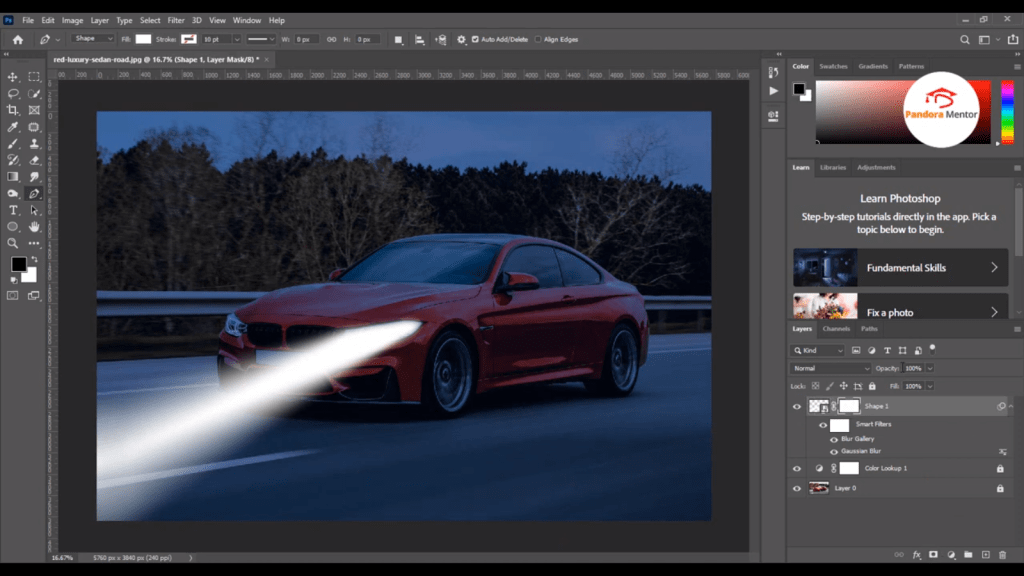
after that grab a mask of layer. select the mask

turn ON Car Headlights Photoshop

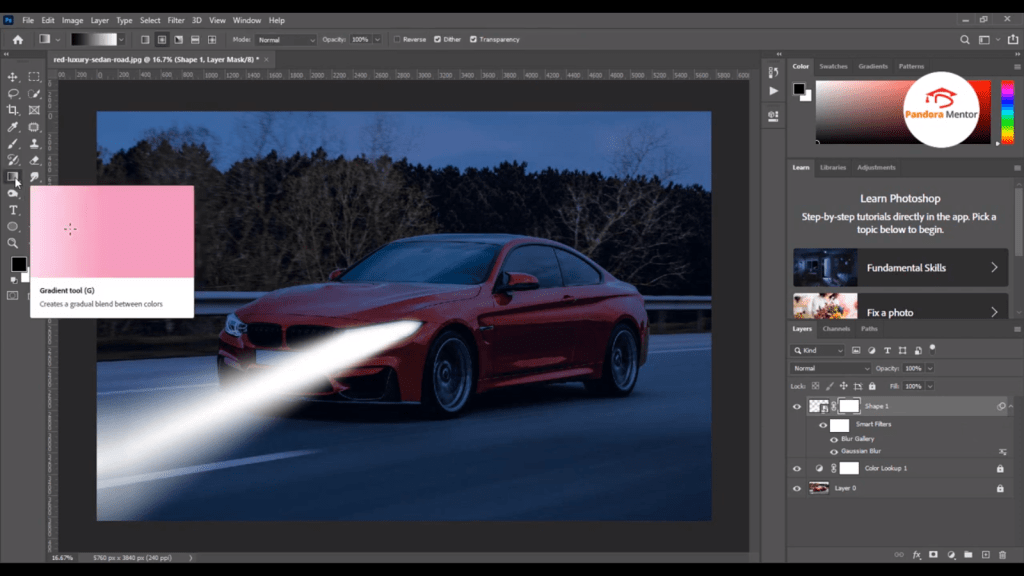
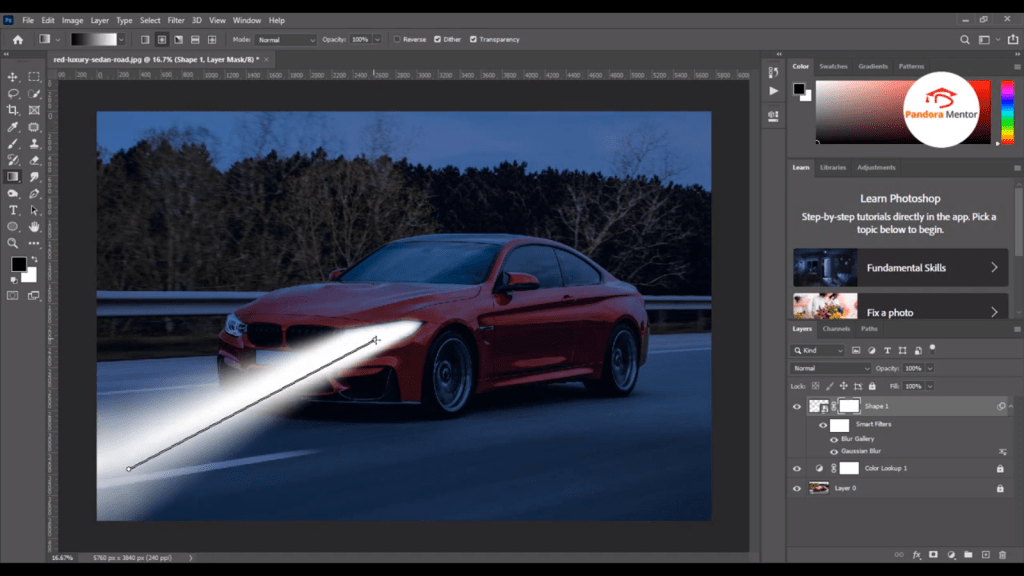
>> grab gradient.

turn ON Car Headlights Photoshop

after that darw gradient on shape like showing in below image.

turn ON Car Headlights Photoshop

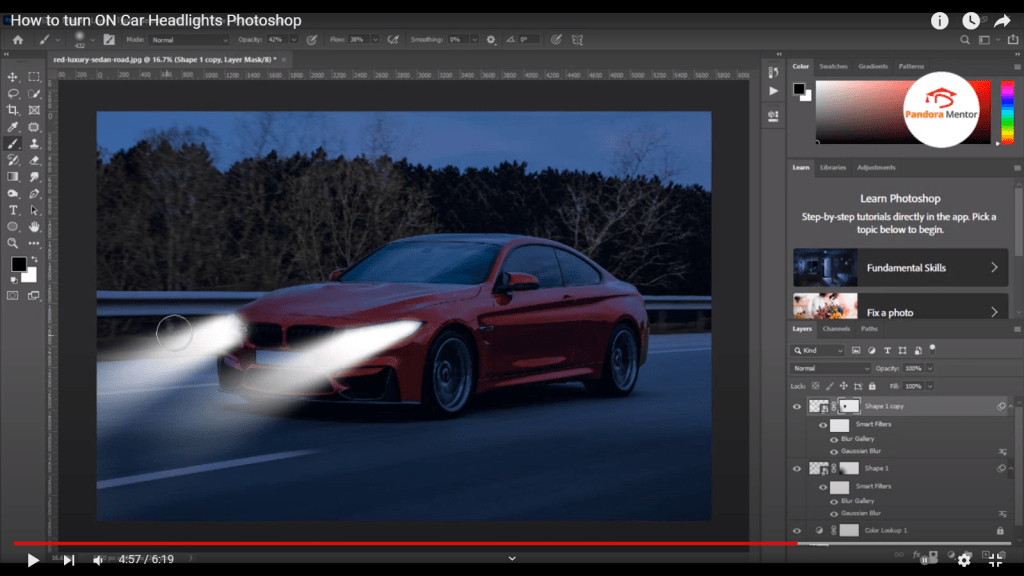
after the select the light shape press ctrl + J to duplication the shape like showing in below image.

turn ON Car Headlights Photoshop

Remove the extra light through brush tool or eraser tool.

Watch the full video below: